Navigating the file system
Juno allows you to browse and manage your files and folders similarly to how you would with the Files  app. Additionally, it provides the ability to add quick access bookmarks to file system locations, and to quickly view documents and media—including beautifully rendered Jupyter notebook previews, and rich previews for code sources, scripts, JSON, XML, and other text-based formats with syntax highlighting.
Quick links
Navigating files
File management
Previews
Locations and bookmarks
Editing files
Overview
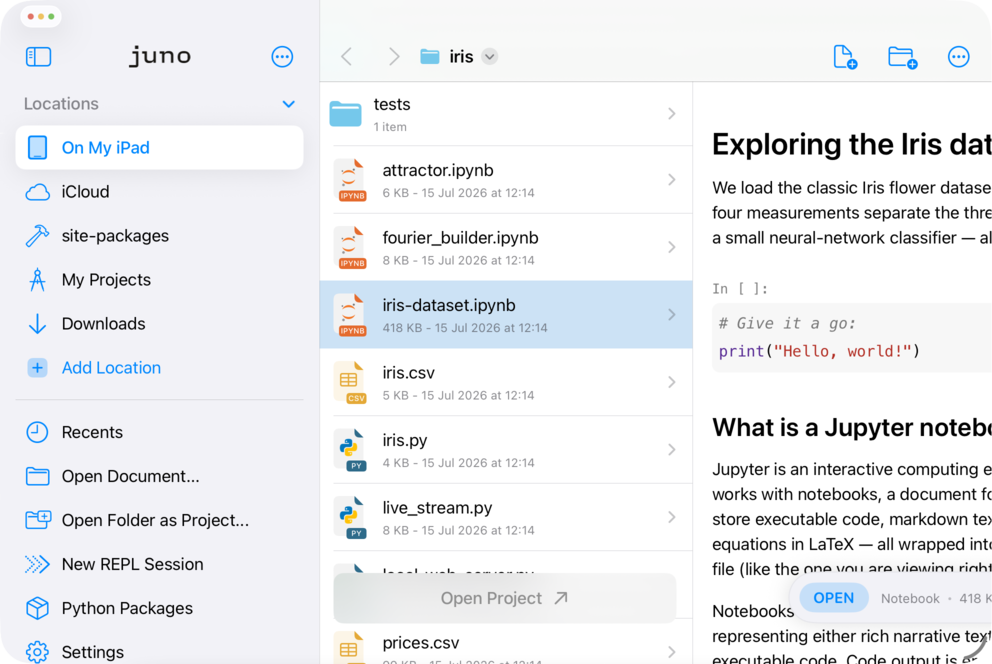
Juno opens on its Home screen, a launcher for your recent files, saved locations and the bundled examples. On iPad, the sidebar lists your file system locations right below Home—select one to display the file browser with the contents of that location in the main area; on iPhone, the Browse tab does the same. The file browser employs column-style navigation on larger screen sizes. Depending on your Open Without Preview setting, selecting an editable file will either open it directly or show a quick preview first.
Navigating files
There are several ways to navigate your documents in Juno. You can browse the contents of the selected file system location, access a list of recently opened documents in Recents, or simply open a document from anywhere on your device using a system file picker by selecting Open Document….
File management
The file browser allows you to perform all standard file and directory management operations: renaming, moving, deleting, etc. Long press an item to access the context menu with available actions.
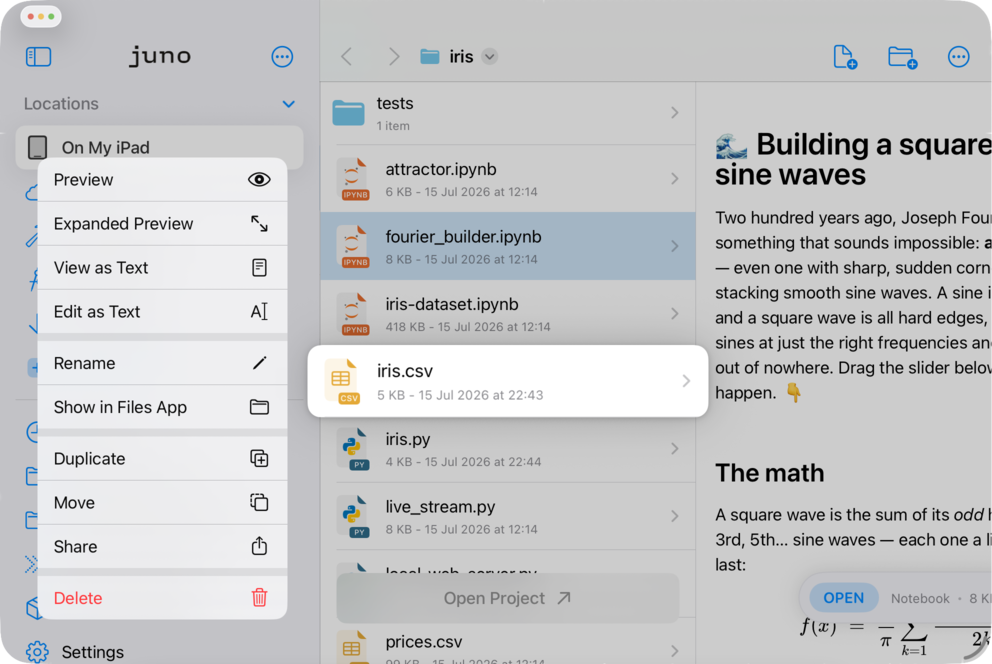
Moving or duplicating an item will display a system dialog to pick the target location, so that you are not restricted to locations accessible to Juno (i.e., the app’s sandbox and location bookmarks).
Previews
When preview mode is enabled, selecting an item displays a quick file preview first. Juno shows rich previews for Jupyter notebooks and code sources, scripts, JSON, XML, and other text-based formats. Most other documents and media use the system Quick Look framework. You can instead open editable files immediately by enabling Open Without Preview in Juno’s file-browser settings.
You can also view and edit a file as text even if it’s recognized as another format (e.g., a .csv file). Select  View as Text in the item’s context menu, or in the preview’s
  overflow menu.
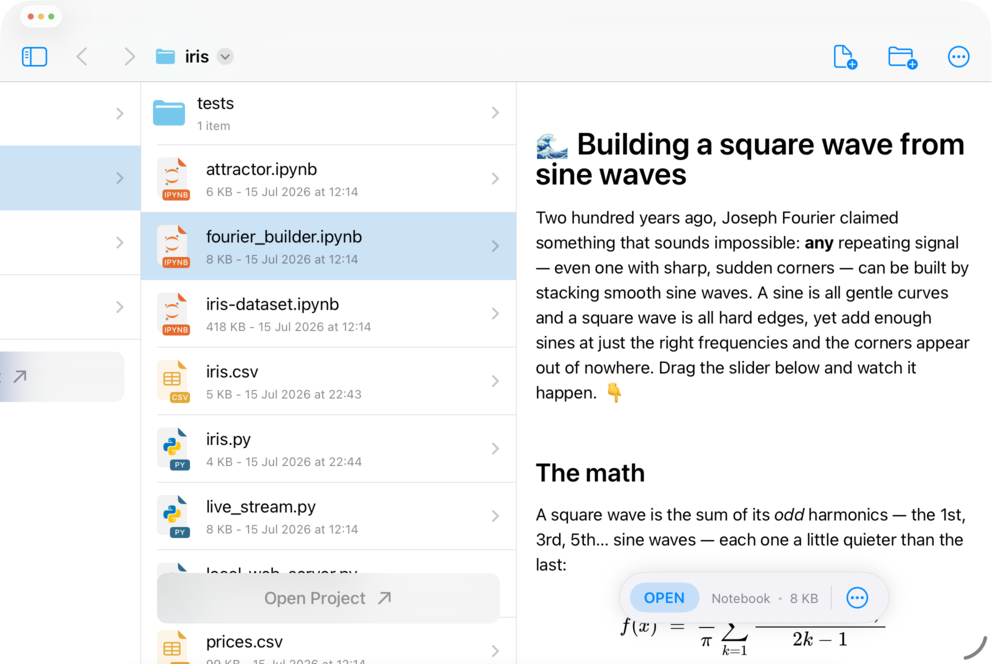
Select Expanded Preview to open the document preview in a larger overlay.
Locations and bookmarks
The list of locations in the sidebar shows locations accessible to Juno by default, such as the app’s Documents folder and Juno’s iCloud storage. You can also add arbitrary locations as bookmarks for quick access and to access directories outside the app’s sandbox.
Selecting Add Location will present a system dialog allowing you to pick the directory you would like to add as a bookmark in the list of locations. You can choose an icon and provide an optional bookmark title—it won’t change the actual name of the directory you selected and will only be used for displaying the bookmark in the locations list.
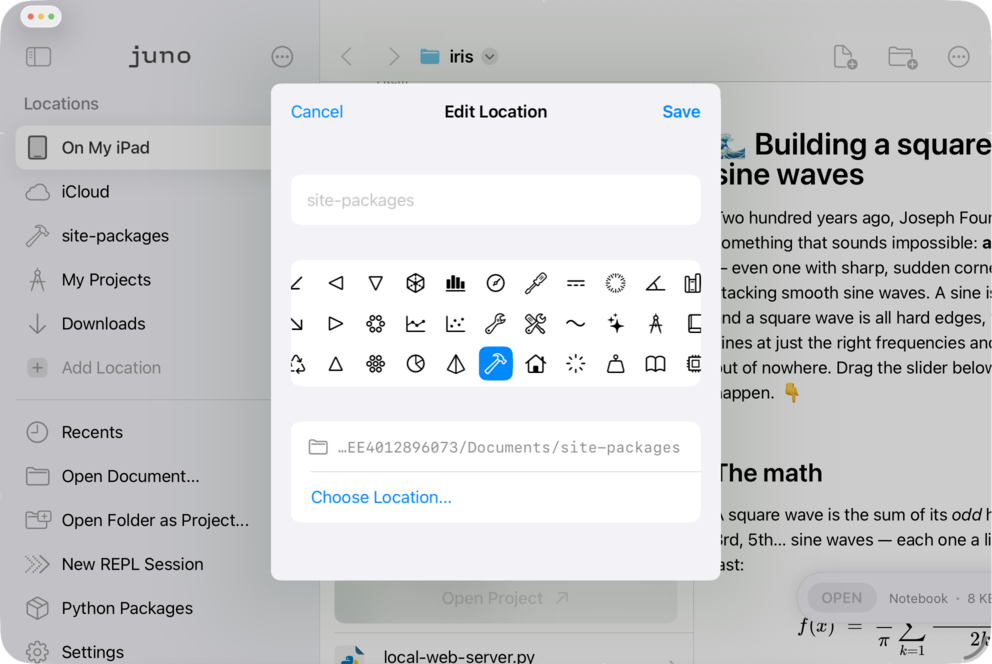
Rearrange and delete locations by selecting Edit Locations in the sidebar overflow menu. You can also edit an existing location by swiping left on the bookmark in the list of locations and selecting Edit.
Editing files
The file browser opens Jupyter notebooks in a notebook workspace and text-based files in Juno’s unified code and text editor. The editor offers:
- Syntax highlighting for popular formats (such as Python source files, JSON, YAML, Markdown, XML, LaTeX, R, and others).
- Intelligent code completion for Python.
- Powerful Find and Replace capabilities.
- Configurable view options, such as text size, line wrapping, invisible characters, tab width, and more.
- Keyboard extension for easier access to frequently used keys.
- Customizable toolbar.