Package management
Juno ships with many powerful libraries already pre-installed, such as SciPy, NumPy, pandas and Scikit-learn (and, from Juno 4.3, Polars and DuckDB)—but you can also install additional pure-Python packages with Juno’s package manager. It looks up packages on PyPI (Python Package Index), works out all package dependencies, shows you the whole plan before anything is installed, and then installs the set. It also keeps track of what is on your device, points out available updates, and can set up a whole project by installing the packages its requirements file lists.
This guide describes the package manager in Juno 4.2 and later. If you are running an earlier version of Juno, please refer to the previous guide instead: Package management in Juno 4.1 and earlier.
Quick links
Installing project dependencies
Overview
You can open the package manager by selecting Python Packages in the sidebar on the app’s Home screen, or Packages in the bottom tab bar on iPhone. The interface has two major components: the packages list and package details. On an iPad in fullscreen the list is displayed on the left and the details of the selected package on the right; on iPhone each package opens as its own screen.
Packages list
The packages list displays everything installed in Juno’s Python environment. Packages with a newer release available carry a small blue badge showing an up arrow and the version you could move to—3.14.3 next to aiohttp in the screenshot below.
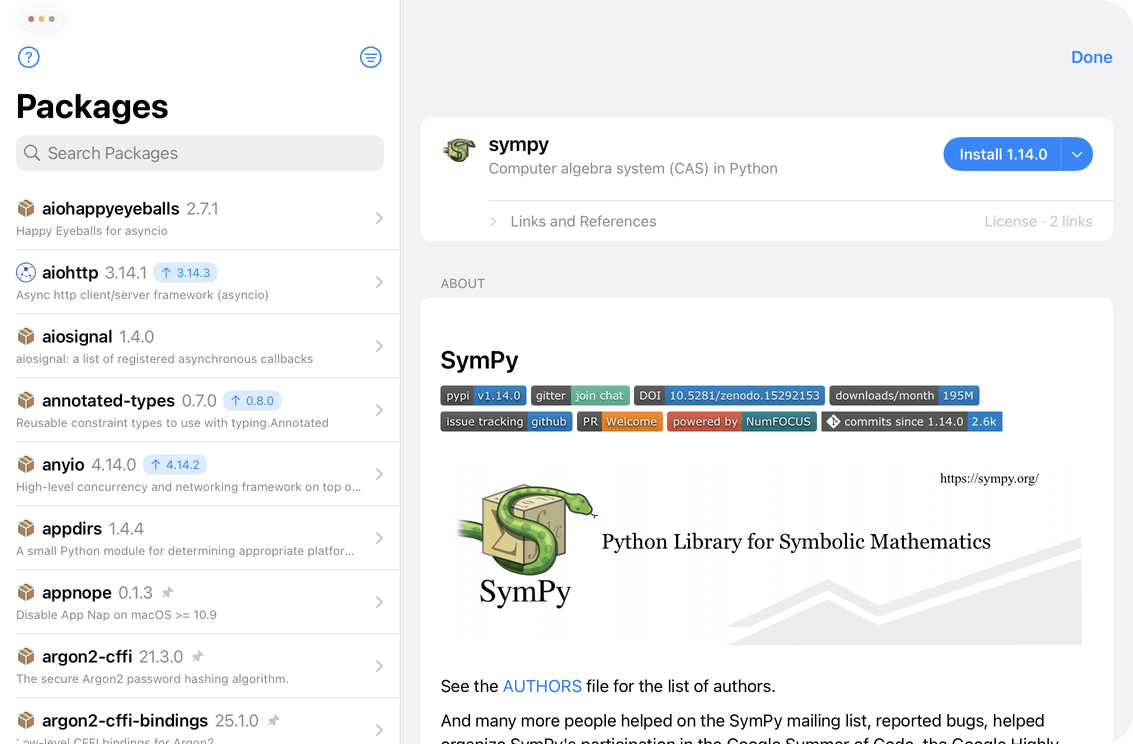
Use the search field at the top to filter the list by name or find a new package: type a package name (the one you would otherwise pass to pip), and Juno shows a combined list of matching suggestions from PyPI and installed results. With the search field active and empty, Juno shows a browsable list of popular packages.
The funnel button in the navigation bar opens the Filter menu: All (the default), Pinned, Installed for the packages you installed yourself, and Updates Available, which narrows the list to packages with a newer release.
Package details
A package page is built around three things: what the package is, what is on your device, and the project’s own README.
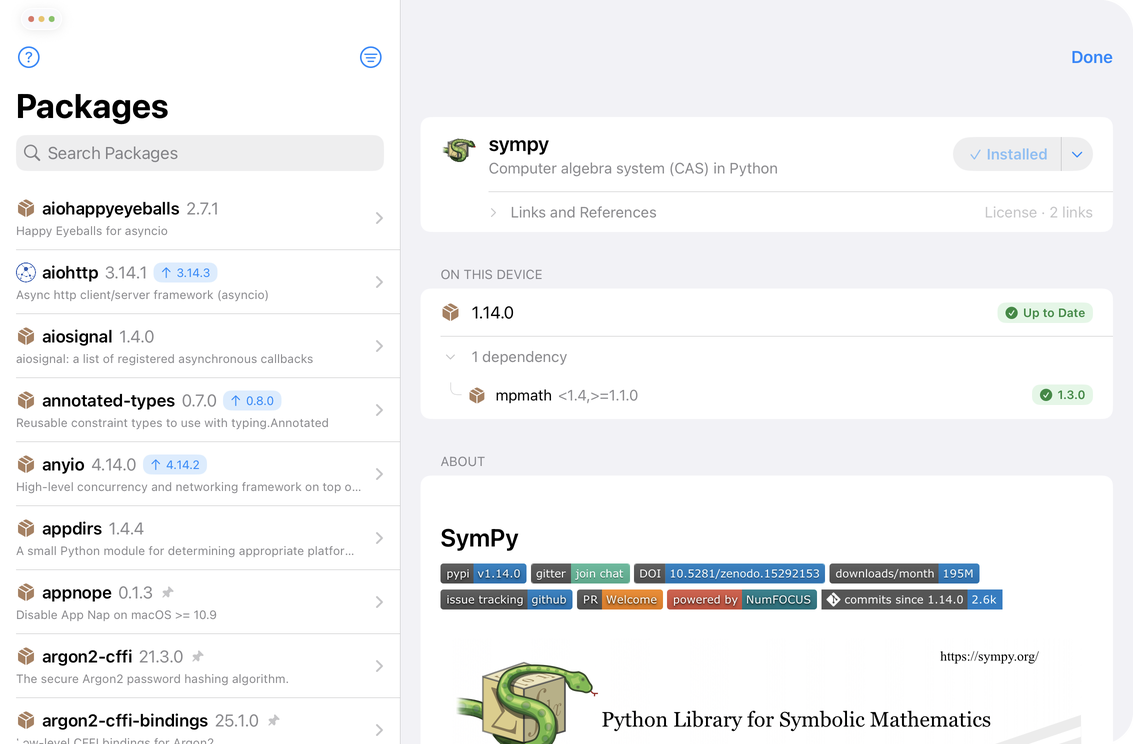
The blue pill in the top-right corner is the one control that installs, updates or downgrades the package. When the selected version is already on your device, the pill reads Installed and does nothing. The chevron next to the label opens the version menu with the list of available distributions. Each entry is marked Compatible, May Work — builds from source (Juno would fetch the source package and build it on the device) or Not Supported on iOS. For installed packages the menu also lets you delete the package.
Installed packages have an On This Device section showing the version you have, with a green Up to Date badge when it is the newest release Juno can run, or the same blue up-arrow badge as in the list when it isn’t. Packages that arrived as some other package’s dependency are labeled Installed as a dependency.
If the package declares dependencies, an expandable row underneath lists each one with the version range the package asks for, such as <1.4,>=1.1.0 for mpmath. The chip on the right is what is actually on your device: a green version number when the requirement is satisfied, or an amber Missing when it isn’t. Anything with a problem sorts to the top of the list.
The About section renders the project’s README—Markdown, reStructuredText or plain text—much as it appears on PyPI, with headings, code blocks, tables and images intact.
Installing a package
Tap the install pill and Juno opens the review sheet. Nothing is installed at this point: Juno first works out what the package needs, and the packages involved settle one by one—each row shows a blue Resolving… badge until its version and compatibility are confirmed.
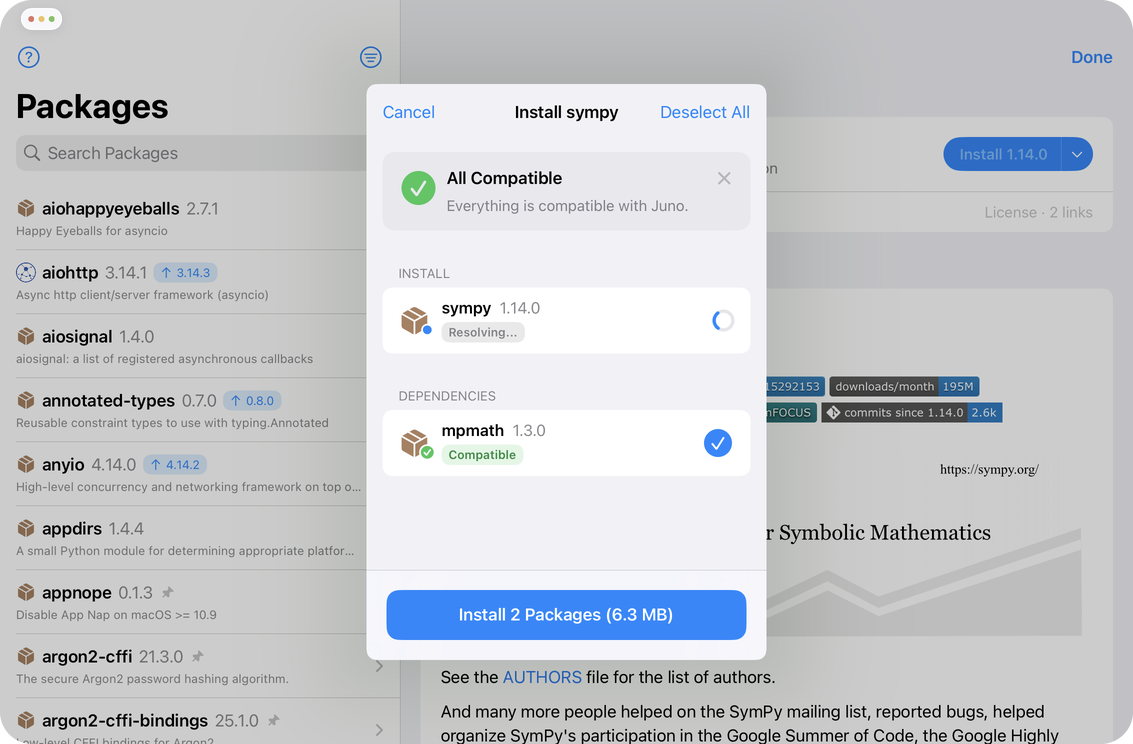
When resolution finishes you get the plan. The package you asked for sits under Install, everything pulled in for it under Dependencies, requirements already satisfied by an installed or pinned package under Already Available, and anything Juno can’t install under Not Supported. A banner at the top summarizes the outcome—All Compatible with “Everything is compatible with Juno.” when there is nothing to worry about, or a warning such as Version Conflicts, Source Packages or Not Supported when there is.
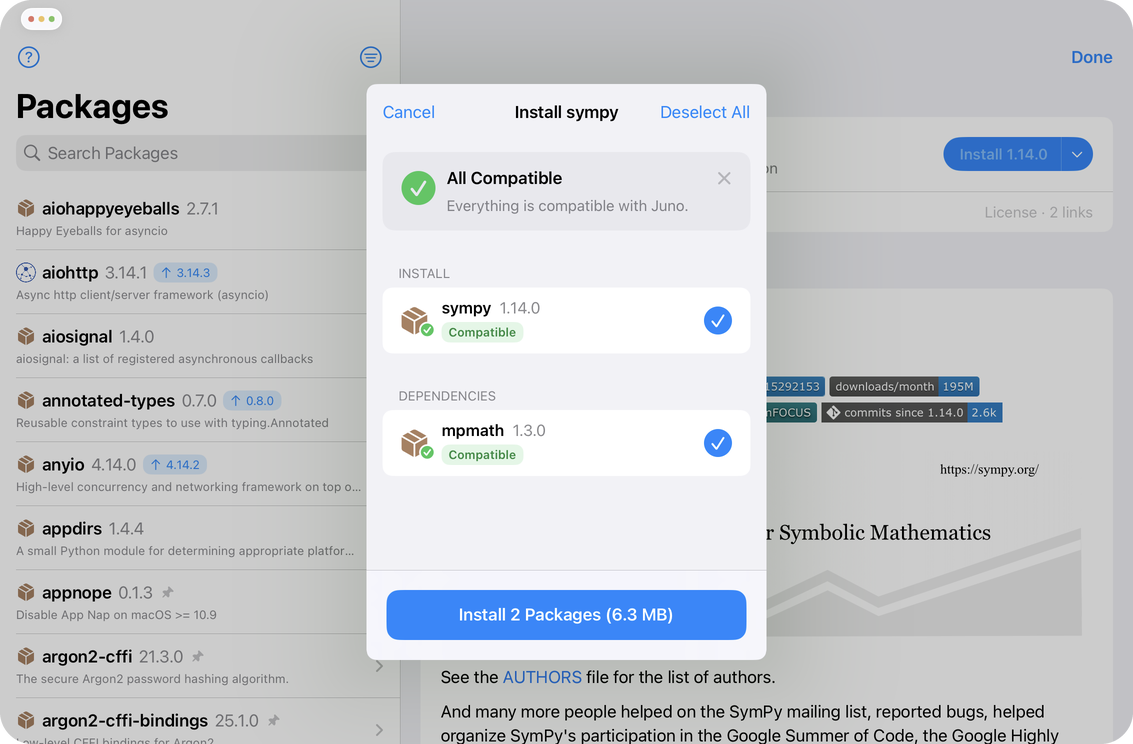
Tap any row to see the details behind its badge: the version and download size, why it was chosen, and which packages required it.
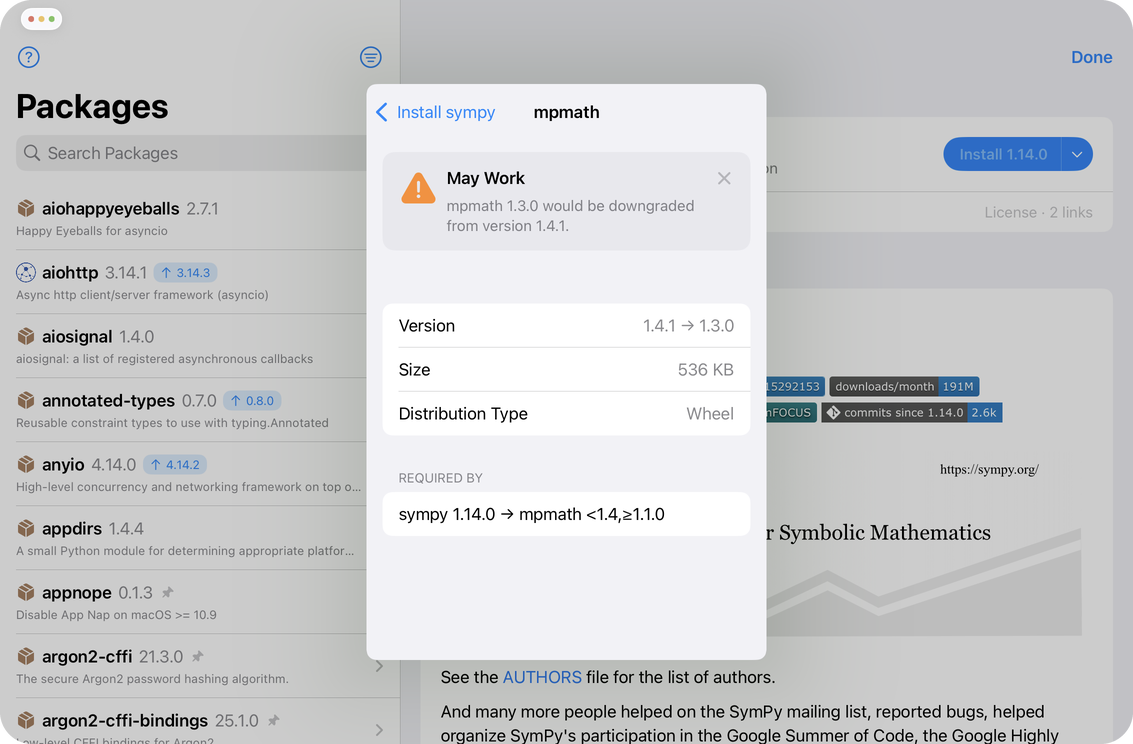
The plan is yours to edit. Every requested package and every dependency has a checkmark you can clear, and Deselect All in the navigation bar clears them all. Deselecting is effective: drop a package, and dependencies that were only there for it drop out too—while dropping a dependency flags the packages that still need it. Rows under Already Available are locked, and unsupported ones can’t be selected.
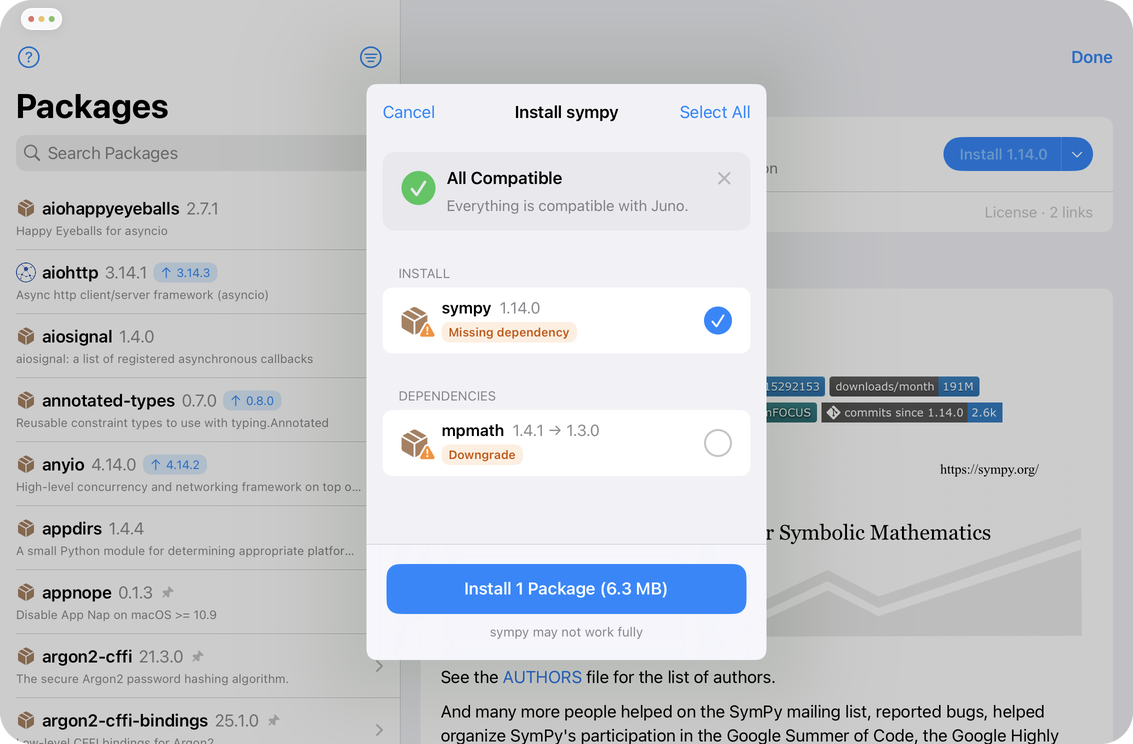
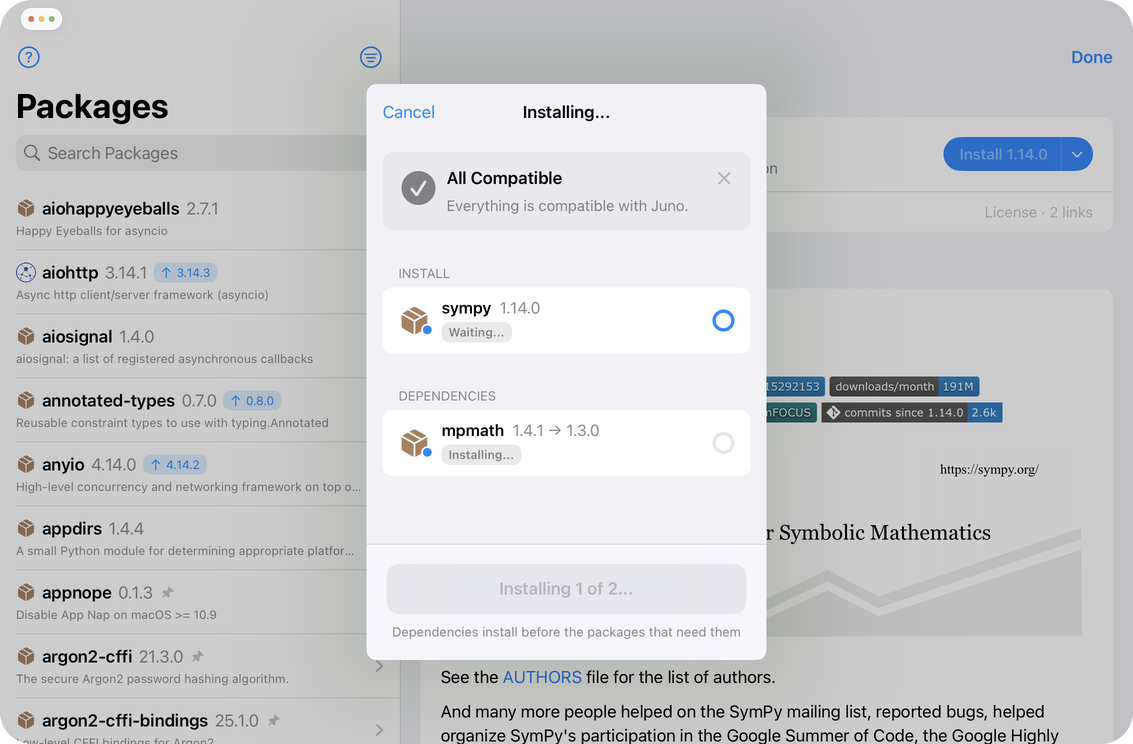
Juno starts downloading in the background while you read, and the button at the bottom carries the total download size—Install 2 Packages (6.3 MB). Tap it and the sheet switches to installing. Dependencies go in before the packages that need them, the button counts through the set (Installing 1 of 2…), and each row reports its own progress. At the end a report replaces the banner: Installation Complete with “All 2 packages installed.” when everything worked, or Partly Installed or Finished With Errors with the details on the rows themselves.
Not every package can be installed. Pure-Python packages install as they are, and source packages with a pure-Python build can now be built on the device during resolution. Packages that rely on compiled extensions still can’t be—iOS does not allow apps to load compiled code that wasn’t signed into the app bundle—so Juno marks them Contains compiled code and lists them under Not Supported. It is also why some libraries can only reach Juno by being ported and bundled with the app.
You can also place package sources into the site-packages directory in Juno’s on-device storage by hand—Juno picks them up as usual, though a package without its metadata (an .egg-info or .dist-info folder) won’t appear in the packages list.
Updating packages
To update, open the package and tap the pill, which already reads Update to X.Y.Z with the newest release Juno can run preselected. The update goes through the same review sheet as a fresh install: dependencies are resolved again, and anything that has to move with the package is listed before you confirm. There is no update-all button, and no update action on the list row itself—updates are always reviewed one package at a time.
The version menu lets you install any other release too: pick something older than what you have and the pill changes to Downgrade to X.Y.Z.
Installing project dependencies
When you open a folder as a project and Juno finds a requirements file in it—or when you open such a file from the project tree—Juno offers to set the project up for you: select Install… to review the packages, or Not Now to dismiss it. Each file is only offered once.
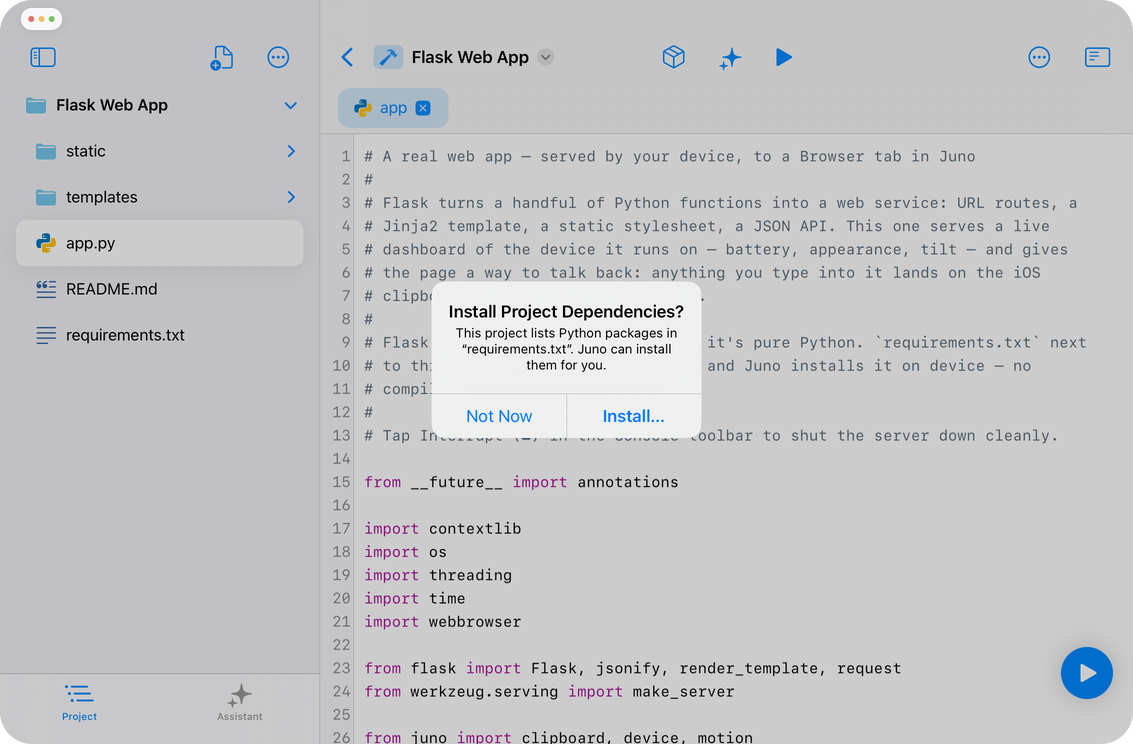
Juno reads requirements.txt and its usual variants (requirements-dev.txt, requirements/*.txt and similar), Pipfile and conda’s environment.yml. Dependencies declared in pyproject.toml can be installed too, but only when you ask for them explicitly. Lock files, constraints.txt and build scripts are never installed from.
You can start the same flow yourself at any time: long-press a dependency file in the project tree or a file browser and select Install Dependencies…. To stop being offered anything automatically, turn off Offer to Install Dependencies in Settings.
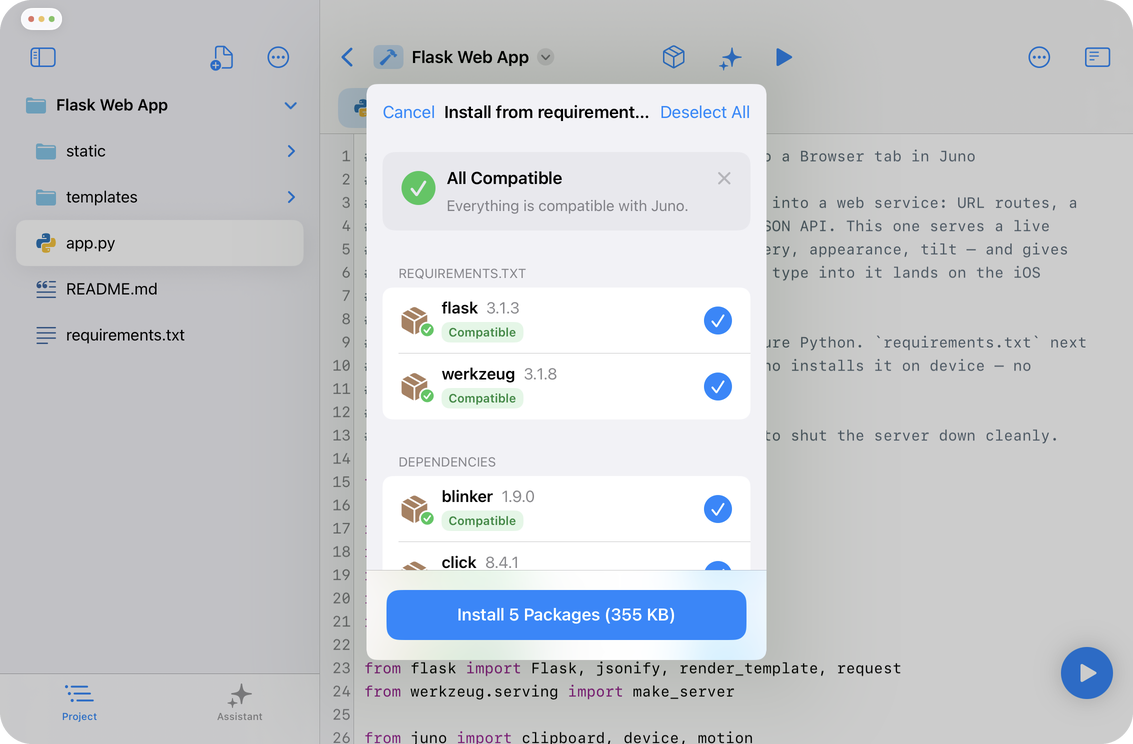
The review sheet is the same one you would see in the package manager. Version specifiers are respected exactly as written—==, >=, ~= and the rest—and lines that only apply to other platforms or Python versions are filtered out. Requirements you already have still appear, marked Installed (or Pinned, for packages bundled with Juno) and locked, so nothing is silently skipped. Lines Juno couldn’t use—editable installs, direct URLs, local paths, source repositories, custom index options—are summarized in a details row at the bottom, grouped by reason.
One caveat: Juno always installs from PyPI. If a requirements file expects a custom package index or relies on hash checking, Juno warns you up front—before anything is downloaded—that installing from PyPI instead may fetch different packages, and asks whether to Continue or Cancel.
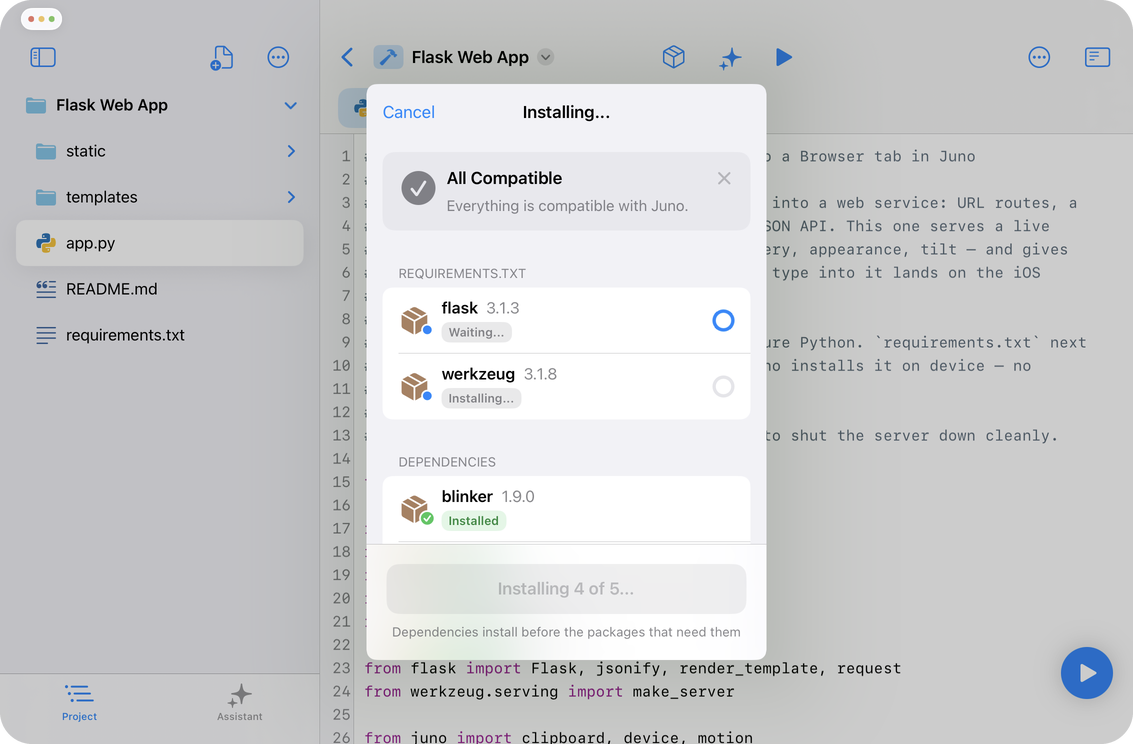
From there it runs like any other install: dependencies first, one package at a time, with a report at the end.
How to delete a package
There are three ways to remove a package you installed yourself:
- In the packages list: a left swipe on the package reveals a Delete option, and a long press offers the same. Juno asks you to confirm first.
- On the package page: open the version menu next to the install pill and select Delete Package….
- By deleting the files: remove the package sources and its metadata from the
site-packagesdirectory in Juno’s on-device storage.
Some of the pre-installed packages are pinned to specific versions, as Juno may rely on a particular version internally, or the package may contain compiled code that has to ship inside the app. Pinned packages cannot be updated or deleted, and they never show an update badge; they are refreshed by app updates instead.
When the package you are deleting brought others in with it, Juno follows up with Also Delete Unused Dependencies? and names the ones installed only for it that nothing else needs. Select Delete to clear them out too, or Keep to leave them installed.