Native UI in Juno
With Native UI, your own Python script can show a native interface on iPhone or iPad. The juno.ui module gives you familiar controls such as buttons and text fields. You describe what goes on the screen and write the Python functions that run when someone taps or types.
Requires Juno 5.0.
Try a greeting
Run this example as a Python script in Juno, as part of a project, or in a single notebook cell. A window opens with a name field and a greeting. Replace Ada with your name to see the greeting change as you type.
"""A greeting that follows what you type: state, a body function and one callback."""

from dataclasses import dataclass

from juno import ui


@dataclass
class State:
    name: str = "Ada"


state = State()


def set_name(text):
    state.name = text


def body(s):
    return ui.VStack(
        ui.TextField("Your name", text=s.name, on_change=set_name),
        ui.Text(f"Hello, {s.name or 'there'}!", font="title2", weight="semibold"),
        spacing=16, alignment="leading", padding=20, width="fill", max_width=680)


if __name__ == "__main__":
    ui.run(body, state, title="Greeting")
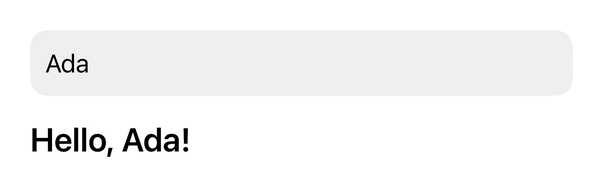
The State object holds the current name. When you edit the field, Juno calls set_name with the new text, then calls body again to update the window. Tap Close and the script continues from the line after ui.run.
Lists, pages and controls
The Plants example shows how a list can turn your data into something you can browse. It groups plants by where they grow. Tap a plant to open its care instructions on a new page, then go back to the list.
Use tabs to switch between parts of a window, or open a sheet for a short task such as editing a name. A switch works for a yes-or-no choice, and a slider lets you adjust a value. A web view can show formatted HTML, such as a recipe with ingredients and instructions.
Try a project from Home
You can run Tasks, News Reader, Weather, Chat, Focus Timer, Wallpaper Studio and Device Dashboard from the Native UI section on Juno’s Home screen. In News Reader, open a story to see how the project uses a web view for the summary.
Juno’s AI assistant knows the juno.ui API. With the greeting script open, try asking “How can I add a button that clears the name field?”
The Native UI guide has more examples. Follow Your first window to write a counter with Add and Reset buttons, or look up a component and its parameters in the juno.ui reference.