Working with Python scripts and projects
Juno lets you work with standalone Python scripts, entire folders opened as projects, and interactive REPL sessions in one native workspace. Code runs locally on your iPad or iPhone using Juno’s built-in Python 3.13 environment, even when you’re offline. The code editor, project tree, Output sidebar, working directory browser and AI coding assistant all stay within easy reach while you work.
Quick links
Overview
Working with scripts
Working with projects
Project tree and editor tabs
Project target
Run configuration
Code editor
Running code and viewing output
Console
Preview
Browser
Python REPL
Object Inspector
Working directory and files
AI coding assistant
Related guides
Overview
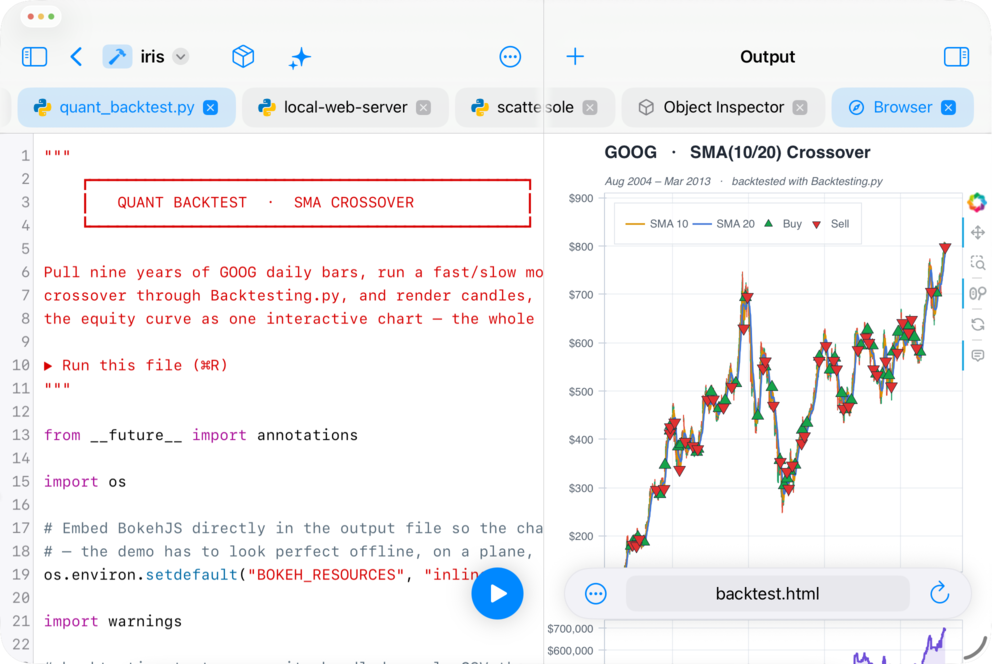
Juno offers three ways to work with Python outside a Jupyter notebook:
- Open a script when you want to focus on a single
.pyfile; - Open a project when your code spans several files, or when you want Juno to remember a folder as a complete workspace;
- Start a REPL session when you want to explore interactively without creating a file first.
All three use the same built-in Python 3.13 environment and installed packages. Juno comes with many industry-standard Python libraries and tools pre-installed, and you can install the vast majority of pure-Python packages using Juno’s package manager.
If you prefer to work with code, Markdown and rich output in a single document, see Working with notebooks.
Working with scripts
Open a .py file from Juno’s file browser or from another app to enter the single-file Python workspace. Select Run File to save and run the current script. Standard output, errors and input appear in the Console tab of the Output sidebar, while media and web content open in Preview and Browser tabs.
Select Configure Run… in the toolbar, or long-press the floating Run button and select it from the menu, to configure command-line arguments for the script. Arguments are parsed the way a shell would parse them—quotes and escapes work as you’d expect—and end up in sys.argv. Juno remembers this configuration for the file.
The script’s working directory is configured separately in the working directory browser. By default, it is the folder containing the script.
Working with projects
A Juno project is simply a folder opened as a complete workspace—Juno does not add a project file or change the folder’s structure. Navigate to a folder in Juno’s file browser and select Open as Project, or select Open Folder as Project… in the navigation sidebar. If you already have a standalone script open, you can also select Open as Project from the document title menu to reopen its containing folder as a project.
Juno remembers each project’s open tabs, active file, sidebar layout, working directory and run configuration. When you return to the project, you can carry on where you left off.
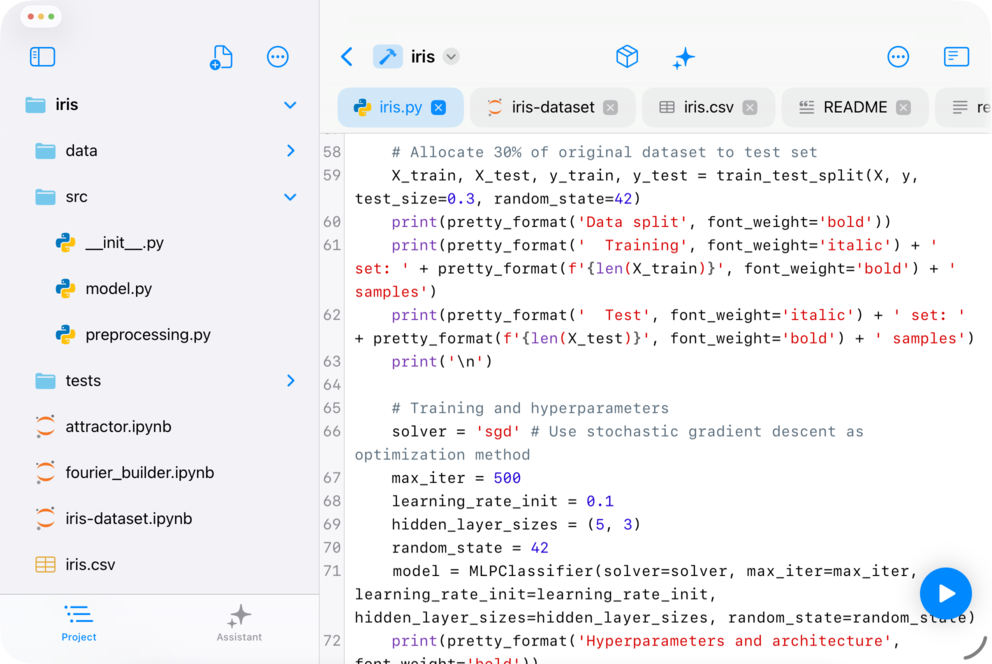
Project tree and editor tabs
The Project sidebar displays the folder as a file tree, and files open in tabs: Python and other text-based files in the editor, Jupyter notebooks as live, fully editable tabs, and images and other supported formats as previews. Each notebook tab runs its own kernel, started in the project’s folder, and several notebooks can run side by side.
Project target
By default, the Run button uses Run File, which runs the Python file in the active tab. Long-press the Run button and select Run Project Target when you want the same entry point to run regardless of which file is open.
The Project Target is the Python script used as that entry point. You can select it in Configure Run…, or long-press a .py file in the Project sidebar and select Set as Project Target. Juno marks the selected file in the tree and remembers it for the project. If you select Run Project Target before configuring one, Juno will ask you to choose it first.
Run configuration
Select Configure Run… from the Run button’s menu or the project title menu to configure the Project Target, its command-line arguments and the project’s working directory. Arguments are passed to the target script and are available through sys.argv; Run File runs the active file without the target’s configured arguments.
The working directory defaults to the project root, and you can choose another folder or reset it to the root at any time. Juno also adds the project root to sys.path, so modules and packages rooted in your project can be imported when you run a file.
Code editor
Juno’s code editor offers syntax highlighting, snappy, intelligent Python code completion (driven by Jedi), and powerful Find and Replace. Syntax highlighting is also available for JSON, YAML, Markdown, TOML, XML, LaTeX and several other languages; Run and code completion are Python-only. Markdown files are formatted live as you type, too: headings are sized, emphasis is shown, and inline code and fenced blocks are set on their own background, with the markup itself kept but dimmed.
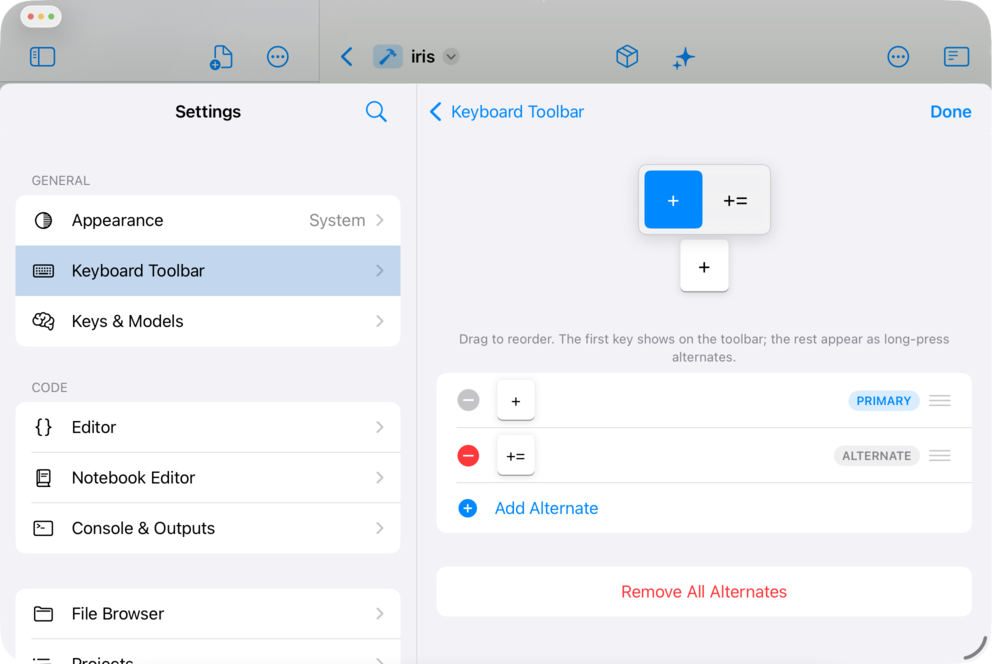
The editor adds a row of keys above the system keyboard. Its character keys are fully customizable: open Keyboard Toolbar in Settings to add, remove or reorder them, and configure long-press alternatives for each.
The editor’s main toolbar is customizable separately. Select Customize Toolbar from the overflow menu to arrange the actions you use; anything you omit remains available in the overflow menu.
Running code and viewing output
Everything your code produces lands in the Output sidebar: Console and Object Inspector live there as tabs, and code-generated media and web pages open in Preview and Browser tabs.
By default, a new run replaces generated Preview and Browser tabs from the previous run, while Browser tabs you opened yourself stay in place. You can change this in Settings: keep generated tabs from earlier runs open, or clear the Console before each run.
Console
The Console handles standard output and input, and comes with full terminal emulator support—most ANSI escape sequences work, so you can format output and even run rich terminal applications.
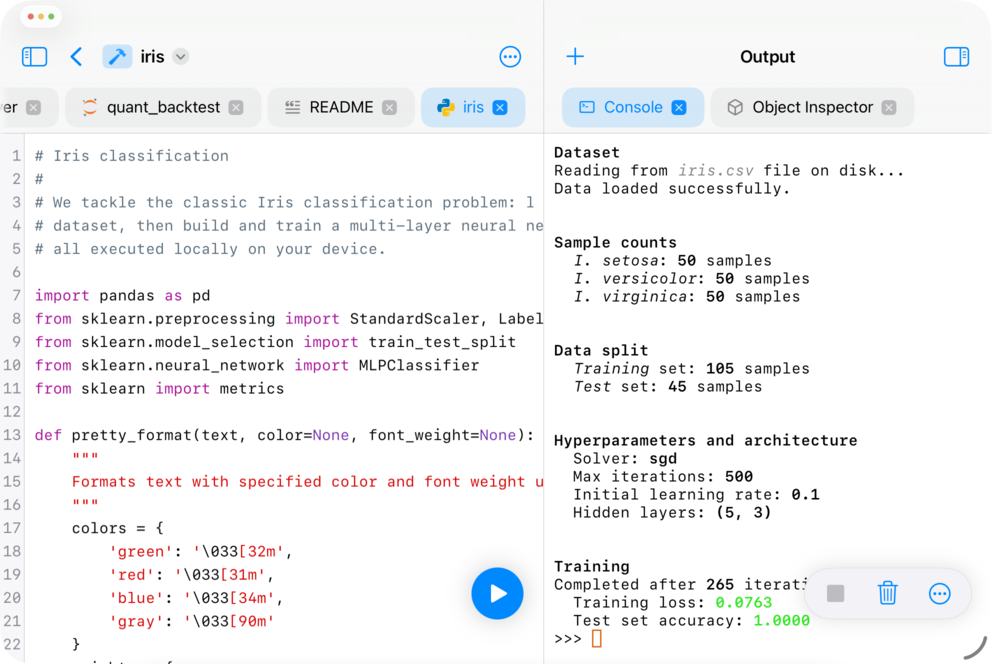
The Console can use a light or dark appearance independently of the rest of the app.
Preview
When your code displays generated media—say, a plot created with Matplotlib or an image generated with Pillow—Juno opens it in a new Preview tab.
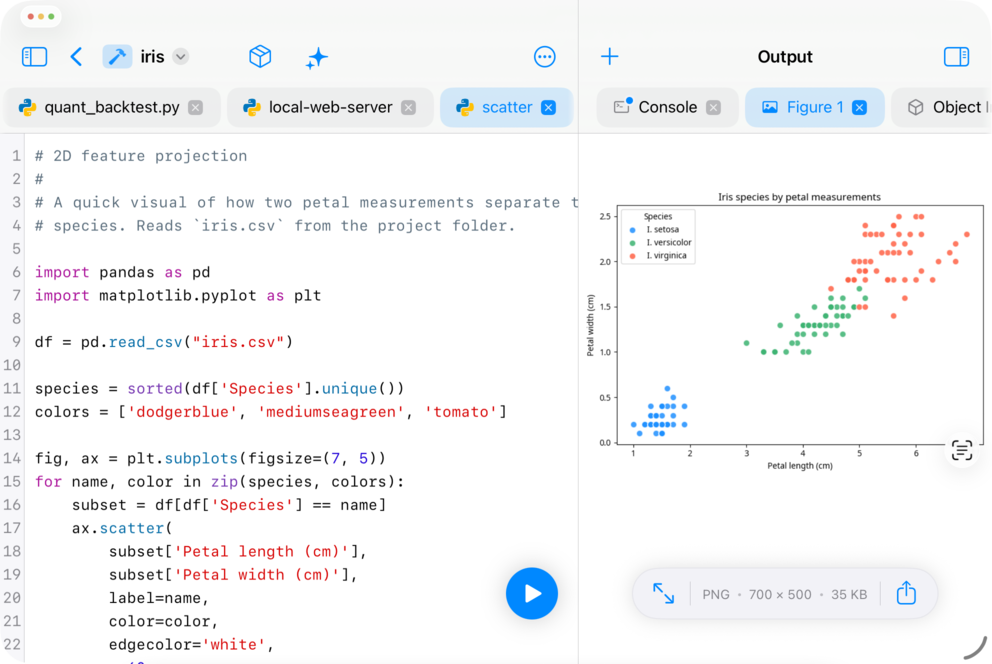
Each item opens in its own tab, and supported formats can also be viewed as text.
Browser
Juno provides a built-in web browser, which you can open from code using Python’s webbrowser module. For example, running a Python script with this code snippet opens the Browser tab in the Output sidebar at the localhost:62630 address:
import webbrowser

webbrowser.open_new("http://localhost:62630")
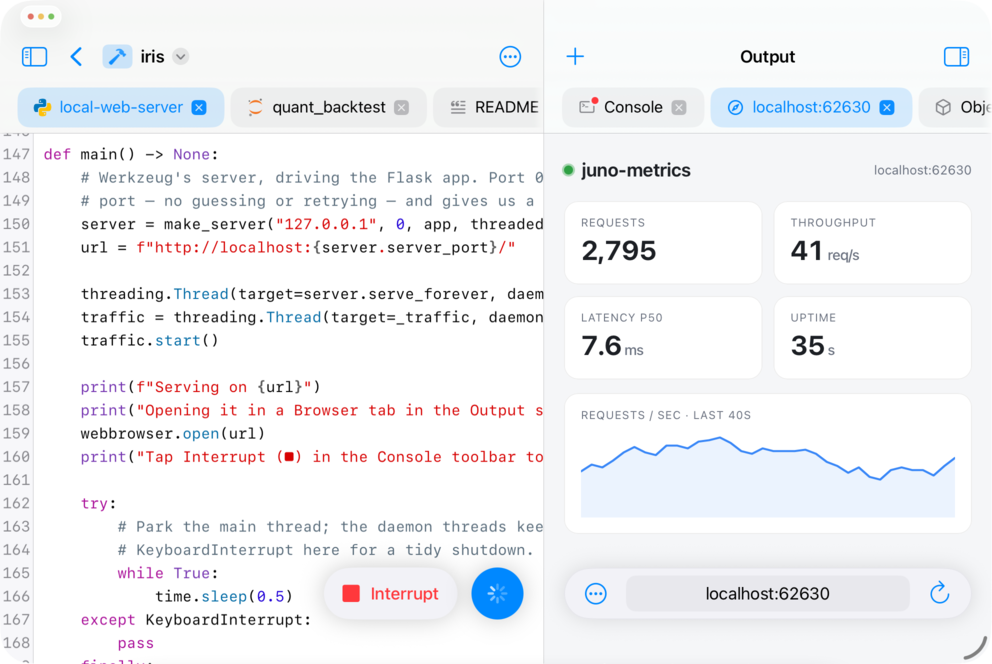
Browser tabs work like any other browser and include a couple of basic debugging tools: you can view page source and forward JavaScript console logs to the Python Console.
Python REPL
Juno’s Python REPL uses the same Python 3.13 environment and installed packages as scripts, projects and notebooks.
Start a standalone session by selecting New REPL Session from a folder’s context menu. That folder becomes the session’s working directory, with the working directory browser and Object Inspector available alongside the Console.
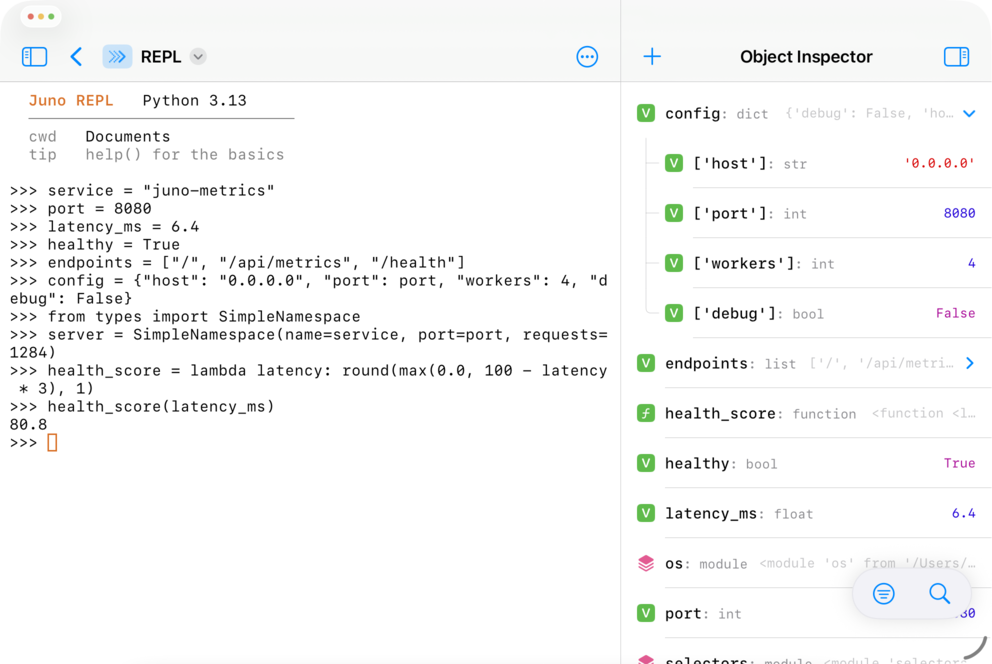
Juno saves a standalone session’s transcript when you close it, so you can reopen the session from Recents (mind that its live interpreter state won’t be restored). Select Reset REPL Session to discard the variables in an open session and start again without closing it.
The REPL can also continue directly from a script or project run. When Drop into REPL after Run is enabled, Juno leaves the interpreter alive and shows a >>> prompt in the Console after the script finishes. Variables, functions and imports created by the script remain available, which makes it easy to inspect a result or try the next step interactively. You can configure this behavior globally in Settings and override it for an individual project from the project title menu.
Object Inspector
Object Inspector lets you browse the current Python session without adding print(...) calls to your code. Show it from the Output sidebar’s + menu in a script or project workspace; it is also available alongside a standalone REPL.
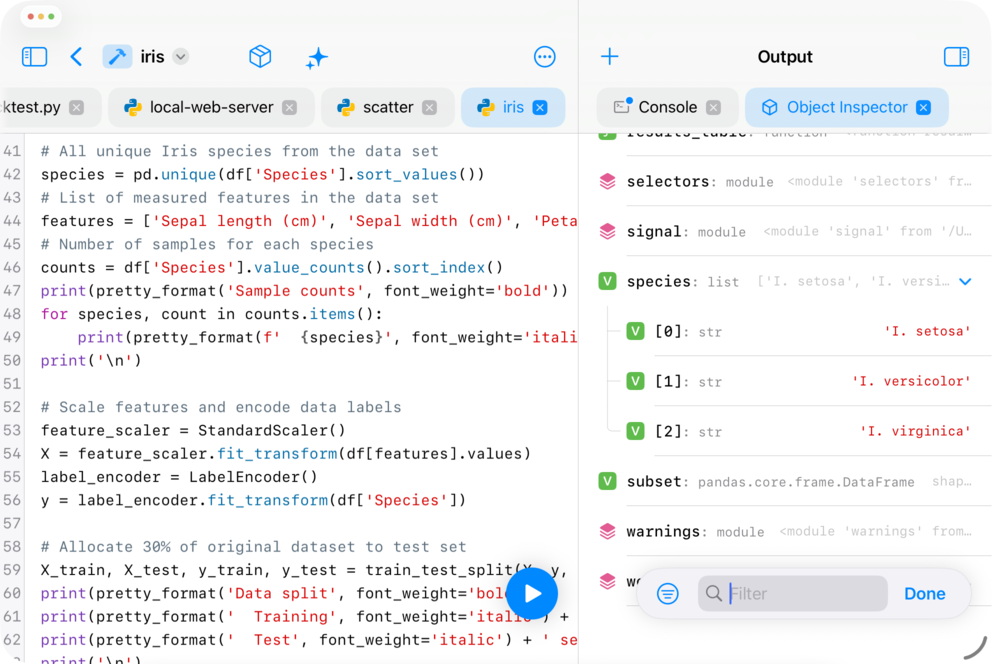
The inspector lists variables and user-defined functions with their type and a compact value preview. Imported names, modules, double-underscore names and Juno’s own runtime objects are hidden by default, and can be revealed with the filter menu.
Lists, tuples and dictionaries can be expanded in place, including nested containers. Select any item to view its qualified type and a fuller representation of its value. Object Inspector refreshes after each run and REPL command, so it follows the live interpreter session as it changes.
In a project, the inspector covers every live session at once: a pinned Project section for the project’s own interpreter, followed by one collapsible section for each open notebook tab with a live kernel.
Working directory and files
The working directory—often shortened to CWD, for current working directory—is where relative paths in your Python code begin. A standalone script uses its containing folder by default, a project uses its root folder, and a standalone REPL uses the folder where you started the session.
The Project sidebar and working directory browser serve different purposes. The Project sidebar always displays the files under the project root—your project’s source tree. The working directory browser displays the active CWD, which can be another folder—even one outside the project—and lets you manage files, copy relative paths, preview documents and edit text without leaving the workspace.
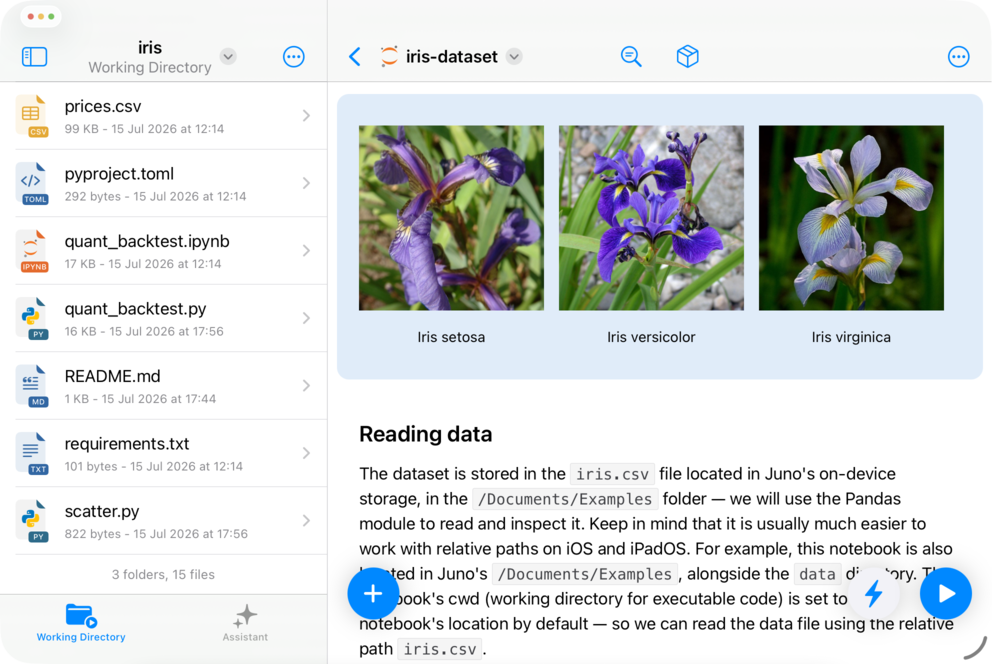
For a project, set the working directory in Configure Run…. Select Working Directory from the project overflow menu whenever you want to browse its contents; you can also keep it permanently available as a sidebar tab by enabling Show Working Directory Tab in Settings. Standalone scripts keep the working directory browser in their leading sidebar.
Learn more about relative paths, file permissions and navigating the current working directory here: Working directory browser.
AI coding assistant
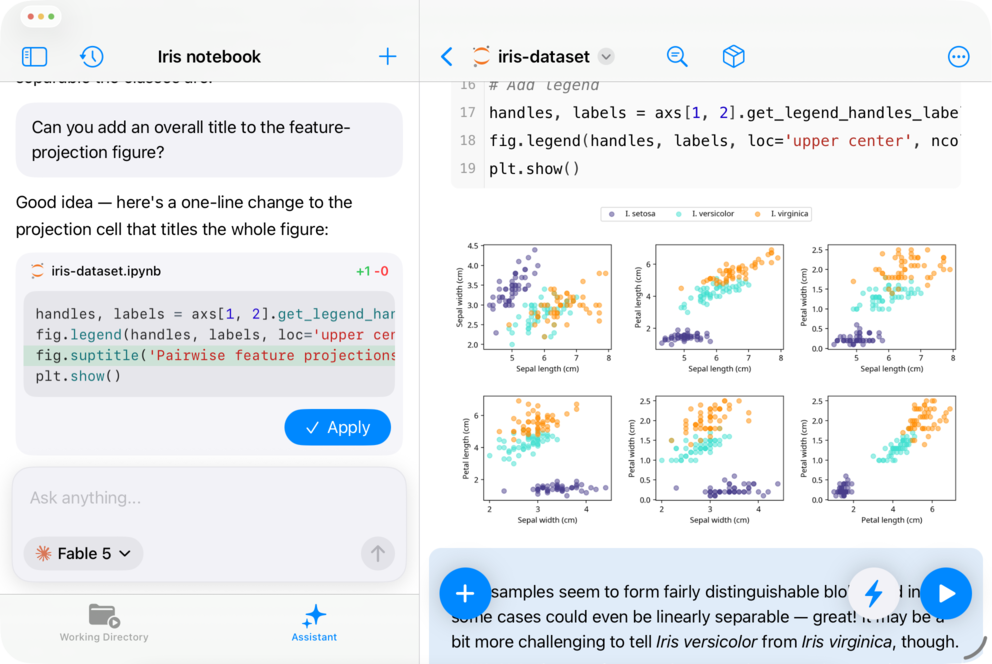
Juno’s AI coding assistant works inside script, text-file, project and notebook workspaces. Open it from the Coding Assistant toolbar action to ask questions, generate code or request changes. Conversations belong to the workspace where you created them, and you can keep several threads for the same file or project.
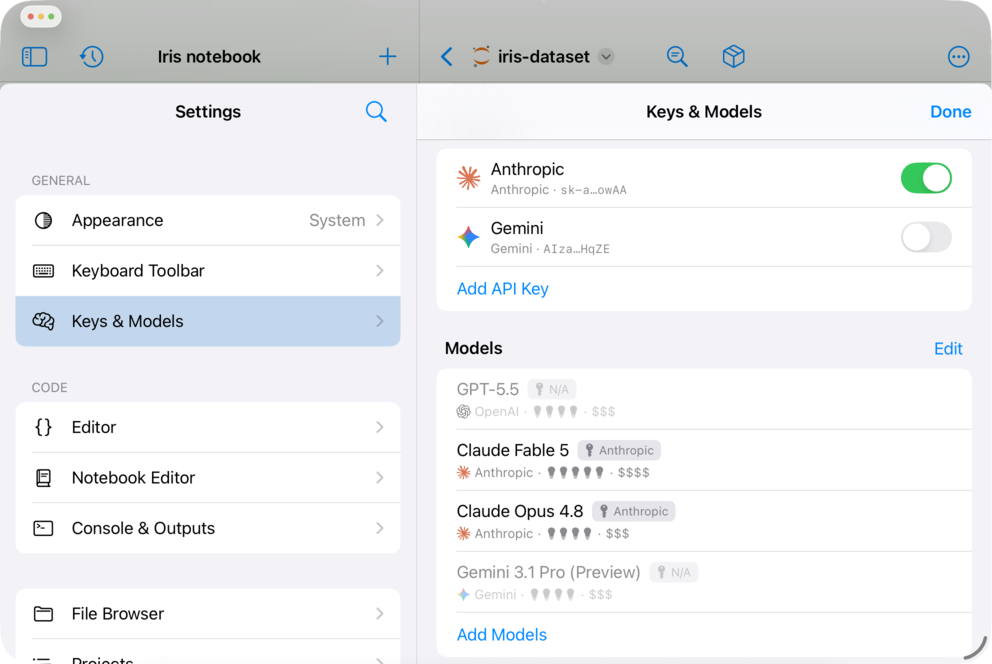
The assistant is bring your own key. Under Keys & Models in Settings, you can add one or more OpenAI, Anthropic or Gemini API keys, then switch individual keys on or off without deleting them. If several enabled keys can run a model, Juno uses the first matching key in the list. Keys are stored in the iOS Keychain, and requests are sent directly from your device to the selected provider under that provider’s terms. Usage and costs are billed by the provider associated with your key.
Tap the current model below the prompt to switch between available models. Choose Configure… to open Keys & Models, where Add Models controls which models appear in the selector. You can also remove or reorder models, or add a custom provider model ID. Only models backed by an enabled key are available in the selector.
Juno includes relevant workspace context with each request. For a standalone file, this includes the current file and Console output. In a project, it includes the project name, the contents of the active file, the paths of files open in tabs, and Console output—it does not automatically send the contents of every file in the project.
When the assistant suggests an edit, it presents the change as a diff for you to review before applying it. In projects, suggested changes can target existing files anywhere inside the project, and Juno opens the relevant file before applying the patch. The most recently applied patch can be reverted if you change your mind. Creating new project files from a suggested patch is not currently supported.