Native UI
Note
Requires Juno 5.0 or later.
juno.ui shows a native iPhone and iPad interface from your own Python script: real buttons, text fields, lists, tabs and pages, the same controls the system’s own apps use. You describe in Python what the screen should show, and Juno draws it with the standard iOS components.
How it works
A juno.ui program has three parts:
State: an ordinary Python object that holds your data, usually a dataclass.
A body function:
body(state)returns a description of the screen for that state. It only describes the screen and should not change anything.Callbacks: functions that run when someone taps, types or picks something. They change the state.
After a callback returns, Juno calls body again and updates the screen to match, unless the callback closed the window. You never change a control directly: you change the state, and the screen follows.
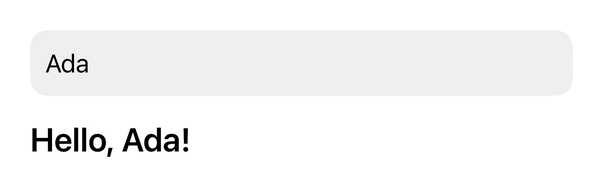
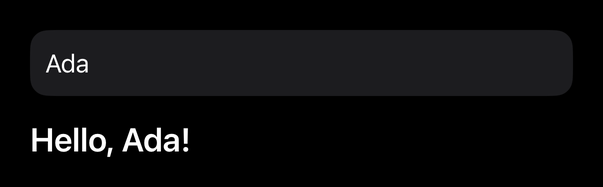
"""A greeting that follows what you type: state, a body function and one callback."""

from dataclasses import dataclass

from juno import ui


@dataclass
class State:
    name: str = "Ada"


state = State()


def set_name(text):
    state.name = text


def body(s):
    return ui.VStack(
        ui.TextField("Your name", text=s.name, on_change=set_name),
        ui.Text(f"Hello, {s.name or 'there'}!", font="title2", weight="semibold"),
        spacing=16, alignment="leading", padding=20, width="fill", max_width=680)


if __name__ == "__main__":
    ui.run(body, state, title="Greeting")
Typing in the field calls set_name with the new text, and set_name stores it in the state. Juno then calls body again, so the greeting under the field shows the new name.
Running it
ui.run(body, state) opens the window and waits until it closes. Run the script with the Run button, or call ui.run from a notebook cell. The window covers Juno until it closes, and the code after ui.run runs once it has.
Where to go next
Your first window builds a counter step by step and explains closing the window.
Lay out a screen with Layout, Text, images and progress, List or Web pages.
Collect input with Buttons and menus, Text fields and editors and Switches, sliders and pickers.
Move between views with Pages and navigation, Tabs and Sheets and dialogs.
Work through State and callbacks, Navigation and Lists and data.
Try Timers and long work, Running in a project and Using other modules in a window.
The projects in Home’s Native UI section are bigger programs you can run and read.
The
juno.ui referencelists every component and every parameter.