Sheets and dialogs
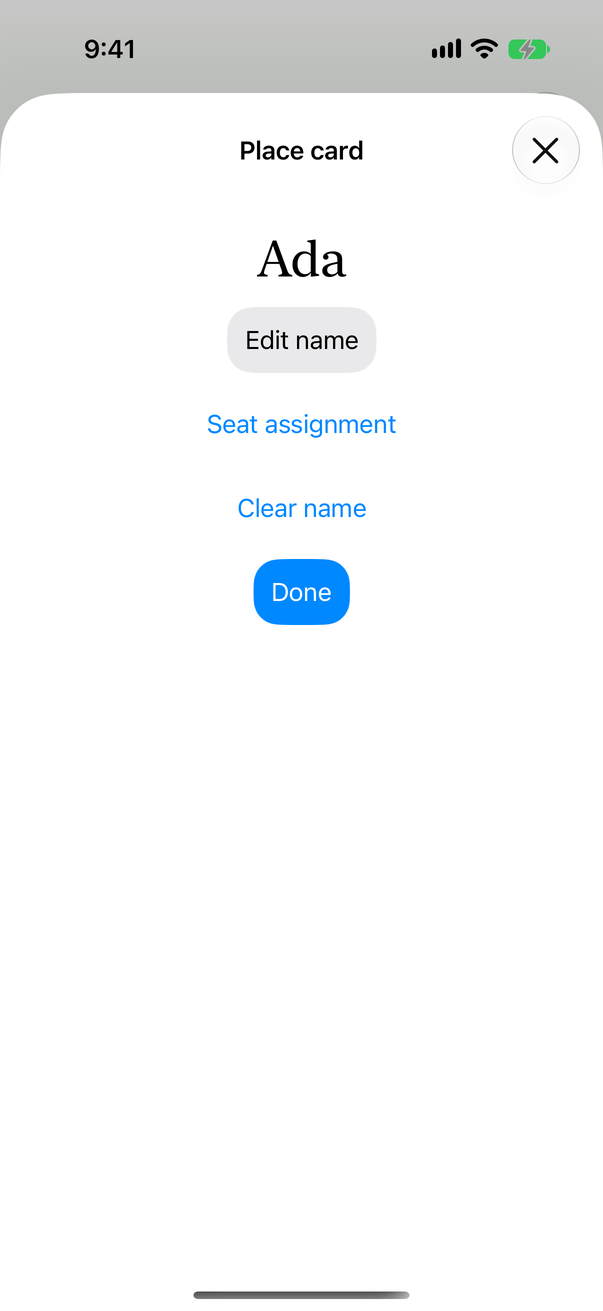
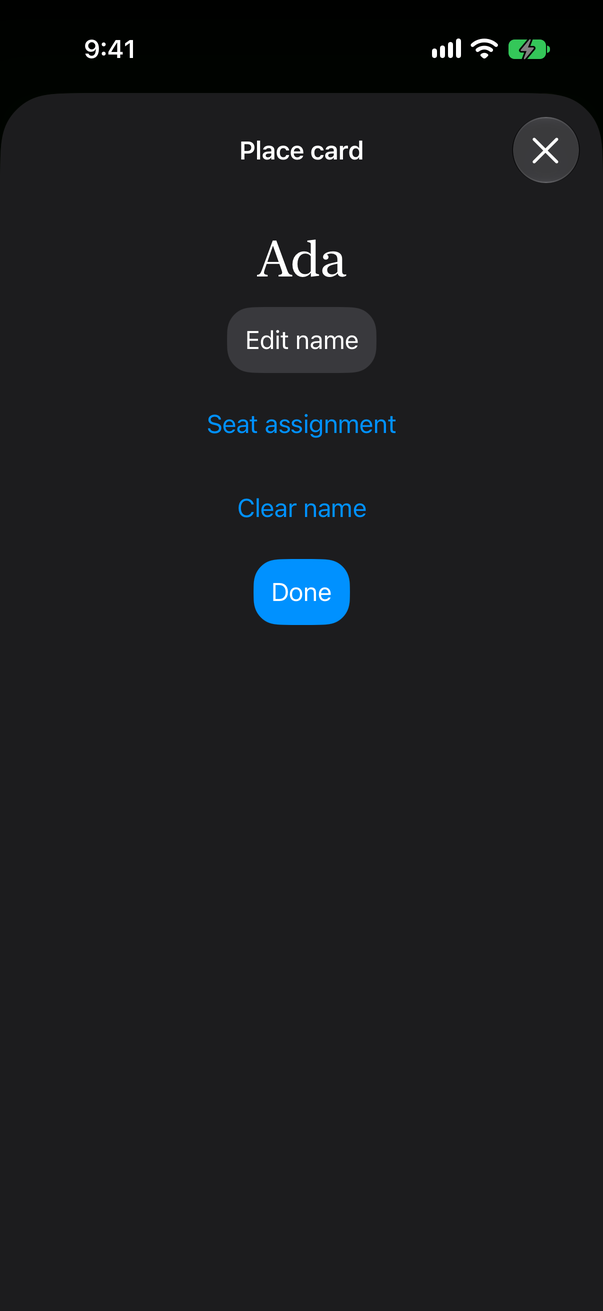
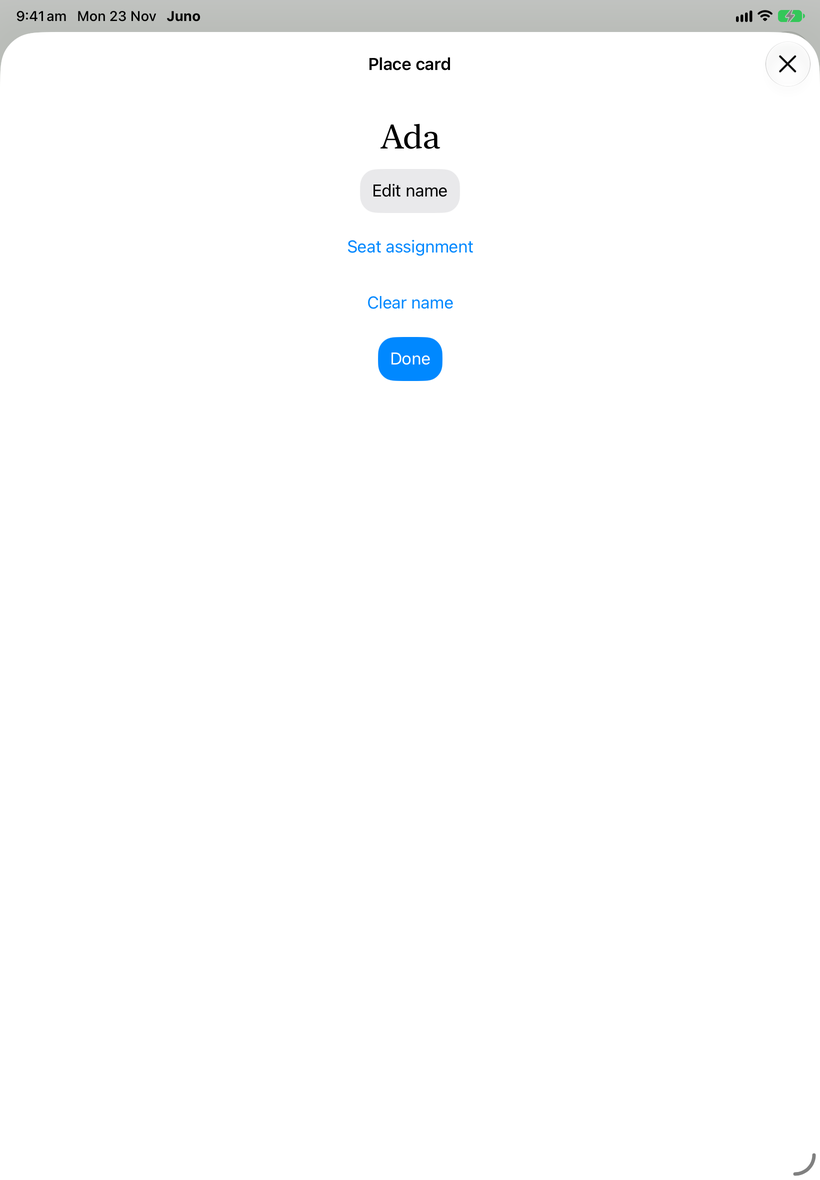
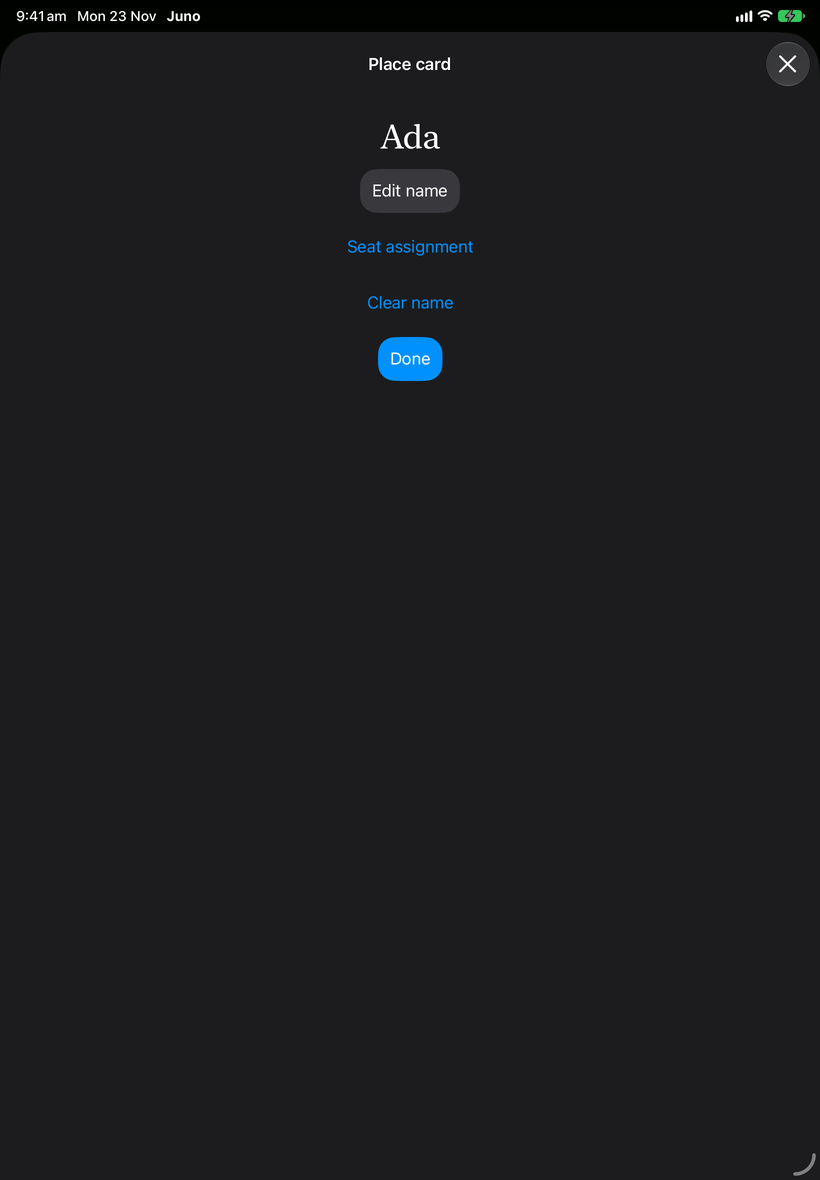
Use a sheet for a short task over the native interface your Python script is showing. For a place card, the sheet makes room to preview the guest’s name and a dialog lets you ask for a new one.
"""Edit a name in a place card preview, then return to the table plan."""

from dataclasses import dataclass

from juno import ui


@dataclass
class State:
    preview: bool = True
    guest: str = "Ada"


state = State()


def open_preview():
    state.preview = True


def dismiss():
    state.preview = False


def rename():
    name = ui.prompt("Guest name", initial=state.guest)
    if name is not None:
        state.guest = name.strip()


def clear():
    if ui.confirm("Clear this place card?", ok_text="Clear", destructive=True):
        state.guest = ""


def show_seat():
    ui.alert("Seat assignment", "Table by the window, seat four.")


def body(s):
    card = ui.VStack(
        ui.Text(s.guest or "Unassigned", font="large_title", design="serif"),
        ui.Button("Edit name", on_press=rename, style="bordered"),
        ui.Button("Seat assignment", on_press=show_seat),
        ui.Button("Clear name", on_press=clear, disabled=not s.guest),
        ui.Button("Done", on_press=dismiss, style="filled"),
        padding=20, spacing=12)
    return ui.VStack(
        ui.Text(f"Seat four: {s.guest or 'Unassigned'}"),
        ui.Button("Preview card", on_press=open_preview),
        ui.Sheet(card, title="Place card", is_presented=s.preview, on_dismiss=dismiss),
        padding=20)


if __name__ == "__main__":
    ui.run(body, state, title="Table plan")
Open and close the preview
Put one Sheet directly in the root VStack of the window or a page. The example starts with is_presented=True so the preview is open. Swiping it away calls on_dismiss, where you set the state flag to False. The Done button clears the same flag, and Preview card opens the sheet again.
Ask for one answer
Call a dialog from a callback, outside body. Use alert for a message with an OK button, like the seat assignment. Use confirm to ask before clearing the card: it returns True for confirmation and False for Cancel. Use prompt to edit a name: it returns the submitted string, even an empty one, or None for Cancel.
Parameters
Parameter |
Default |
Meaning |
|---|---|---|
|
Required |
One view shown in the sheet. |
|
Required |
Controlled bool; clear it when the user dismisses. |
|
Required |
Function accepting no arguments and clearing presentation. |
|
|
Sheet title; defaults to an empty string. |
|
|
Optional view of Buttons, Text and TextFields, shown in a bar under the sheet’s title, as a Page’s top_bar. |
|
|
Optional persistent sibling key. |
Parameter |
Default |
Meaning |
|---|---|---|
|
Required |
Dialog title. |
|
|
Optional explanatory text. |
Parameter |
Default |
Meaning |
|---|---|---|
|
Required |
Dialog title. |
|
|
Optional explanatory text. |
|
|
Confirmation button label. |
|
|
Cancellation button label. |
|
|
Whether the confirmation has destructive styling. |
Parameter |
Default |
Meaning |
|---|---|---|
|
Required |
Dialog title. |
|
|
Optional explanatory text. |
|
|
Initial text. |
|
|
Hint for empty input. |
|
|
Submission button label. |
|
|
Cancellation button label. |
|
|
Whether to hide typed characters. |
Seen in
Run Weather from Home’s Native UI section and add a city to see a sheet with a search field.