Running in a project
Give a print studio a credit line it can use again on its next job. Start with one Python file in a project.
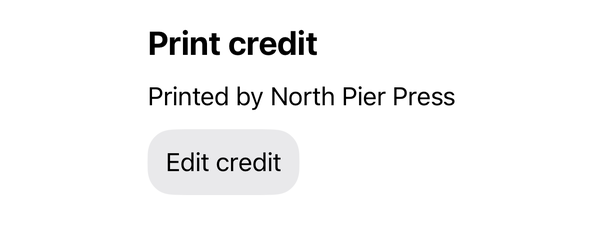
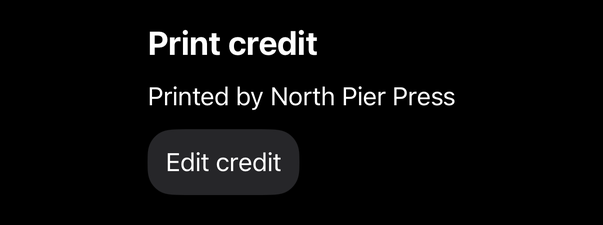
"""Keep the credit line for a studio's next print run."""

from dataclasses import dataclass

from juno import ui


@dataclass
class State:
    credit: str = "North Pier Press"


state = State()


def credit_file():
    return ui.data_folder("Studio Credit") / "credit.txt"


def load():
    path = credit_file()
    if path.exists():
        state.credit = path.read_text(encoding="utf-8")


def edit():
    name = ui.prompt("Studio credit", initial=state.credit)
    if name and name.strip():
        path = credit_file()
        temporary = path.with_suffix(".tmp")
        temporary.write_text(name.strip(), encoding="utf-8")
        temporary.replace(path)
        state.credit = name.strip()


def body(s):
    return ui.VStack(
        ui.Text("Print credit", font="title2", weight="bold"),
        ui.Text(f"Printed by {s.credit}"),
        ui.Button("Edit credit", on_press=edit, style="bordered"),
        alignment="leading", spacing=12, padding=20)


if __name__ == "__main__":
    ui.run(body, state, title="Studio credit", on_appear=load)
Run the file
Save the example as studio_credit.py in your project. In the project tree, touch and hold the file and choose Set as Project Target. Touch and hold Run, choose Run Project Target, then tap Run. It runs the target even when another file is open.
In the window, tap Edit credit and enter Salt House. The line now reads Printed by Salt House.
Keep the credit beside your other saved data
A new project’s working directory is the project folder. Use the project folder for source files. Give saved work its own name in ui.data_folder. Look in Juno’s folder in Files for App Data/Studio Credit/credit.txt. Close the window and run the script again to see the saved name.
Run it from Shortcuts or a notebook
In Shortcuts, choose Juno’s Run Python File action, select your file and run it in the foreground. The window opens over the run’s sheet. A background Shortcuts run cannot open a window.
To try the example in a notebook, put the whole script in one cell. The cell waits in ui.run until you close the window.
See Scripts, notebooks and windows for working directories and Sheets and dialogs for the prompt used here. For a larger project, run Focus Timer from Home’s Native UI section.